
The Meter test screen is a virtual emulation of a benchtop Volt-Ohm Meter, enabling observation of any adapted point in the system. Clicking the Start Meter button will display a large on-screen meter for viewing the screen at a distance, allowing users to examine the elements of a test setup. Parameter information is entered using NETS programming codes in the Parameter Definition field. Users must select a valid input and output address to activate the Start Meter button. The addresses are probed similarly to using a benchtop meter's black and red probe wires. Pressing the Start Meter button starts the test and displays the meter panel.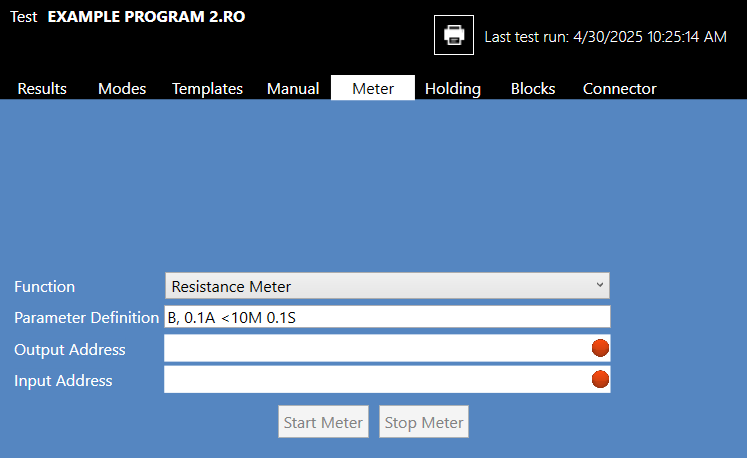
Four fields must be completed to use the Meter function:
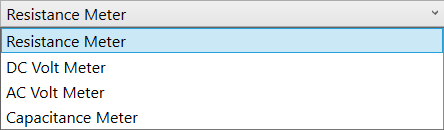
- Function - Users must select one of four Meter options from the dropdown list (shown above).
- Parameter Definition - The user may choose specific parameters to test an I/O. Each meter function has its own default parameter definitions, but the user may adjust these parameters as needed for specific tests. Applying an incorrect parameter definition will result in an "Invalid Parameter" error message. Correct the parameter or delete the parameter statement entirely to clear the error, and the default parameter will be re-established automatically.
- Output Address - This pin label serves as the ‘black’ wire of the meter. This may be a physical address with the analyzer or a label from the ACT file.
- Input Address - This pin label serves as the ‘red’ wire of the meter. This may be a physical address with the analyzer or a label from the ACT file.
Click the Start Meter button to begin reading. This button is grayed out until all test information is correctly entered. Click Stop Meter to end reading. This button is grayed out until a test has been executed by pressing the Start Meter button.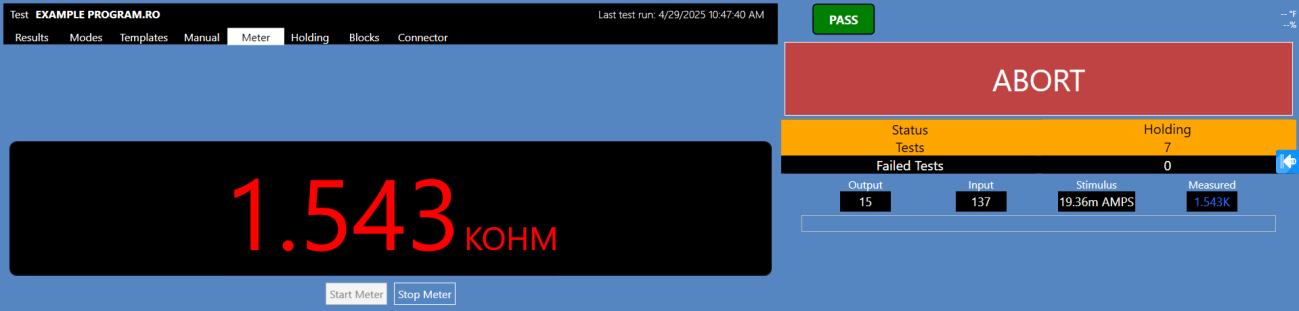
Source: NETS User Manual, Revision D, document 132-06035-0006, section 5.4.1.5.