
Selecting the blue tab with the white left arrow in the upper right section of the screen opens a slider panel that allows the user to view and manage information regarding printing, saving, viewing test results, and help.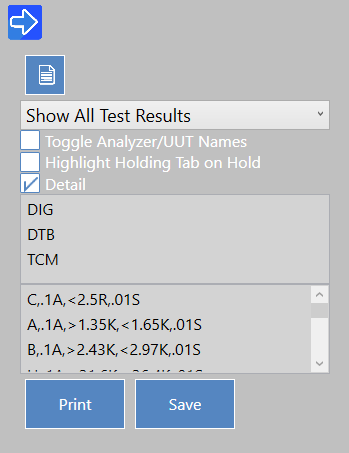
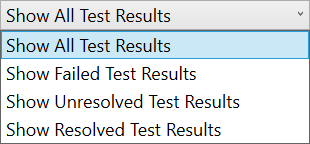
The next dropdown selection is the options for viewing test results. Here, users has four options to select, affecting what results are displayed in the Results Tab of the Function Pane:
- Show All Test Results - Shows the results of all tests.
- Show Failed Test Results - Shows only failed test results.
- Show Unresolved Test Results - Shows only unresolved test results.
- Show Resolved Test Results - Shows only resolved test results.
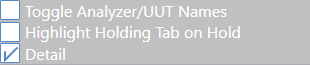
- Toggle Analyzer/UUT Names - Toggles whether test connections are displayed in DIT-MCO addressing or product language.
- Highlight Holding Tab on Hold - When HOT or HOF is used, the Holding tab will be shown instead of the Results tab.
- Detail - Show or hide the dashboard below these options, displaying the currently active modes and parameters.
Click the Default Report icon to create a PDF version of the current test results in the format defined in Settings > Default Report.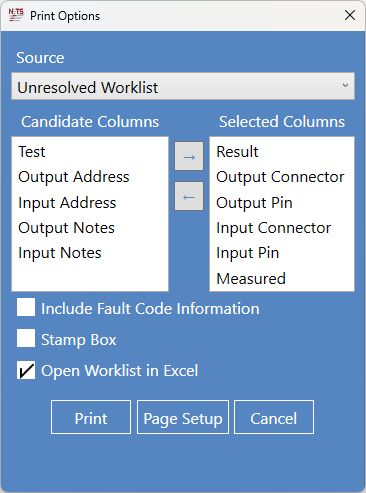
Clicking the Print button allows users to choose from four (4) Source options in the dropdown list. The first is Unresolved Worklist. Users can choose which information will be recorded in the report.
- Include Fault Code Information - Records fault codes created in Settings > Fault Codes.
- Stamp Box - Creates a stamp box in the report.
- Open Worklist in Excel - Prints in digital format to Microsoft Excel instead of a physical copy from a printer.
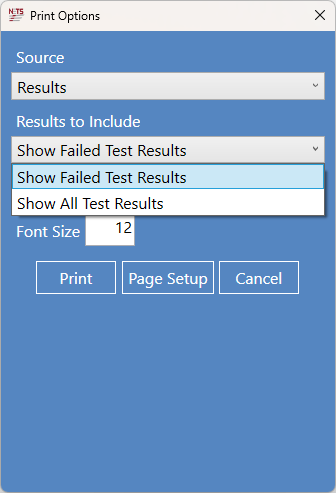
The second Source option is Results. Users may include all test results or only failed test results.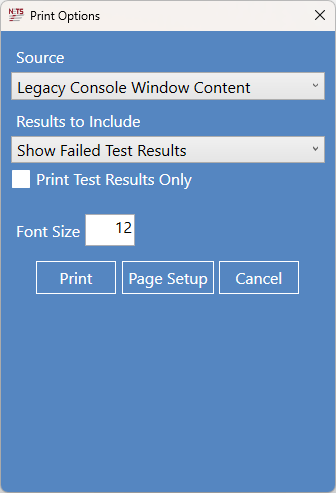
The third Source option is Legacy Console Window Content. This allows users to view the report in a format familiar to those who have used TestExecutive. Users may include all test results or only failed test results, and may also choose to include only test results, omitting all other legacy console information.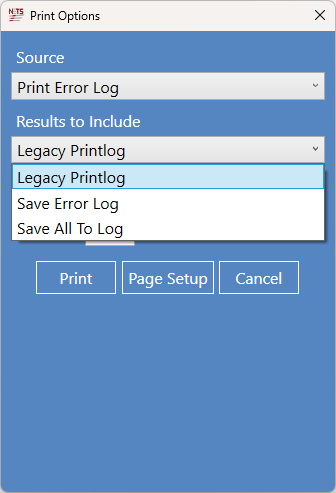
The fourth Source option is Print Error Log. Users may record this log in TestExecutive legacy format, or using the Save Error Log (SEL) or Save All To Log (SAL) commands in NETS.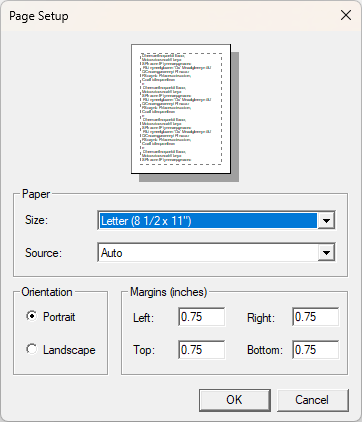
Click the Page Setup button for print options.
Source: NETS User Manual, Revision D, document 132-06035-0006, section 5.4.2.2.