
After a test has been run, the user can review the test results from the Results Pane at Console Output or from the Function Pane at the Results tab by highlighting an individual segment of the test. Highlighting a passed test will display differently from a failed test. A failed test also gives users a graphical display in the Detail Pane.
5.4.2.1.1 Main Window
Illustrated on the previous page is a failed Continuity test. Once the failed test has been highlighted, a display will open in the Test Details showing the results of the individual segment of the test selected. There are four options currently available to users. If users review the results of a passed test, only the Graphical button is available, and the measured readings will display in the top section of the window.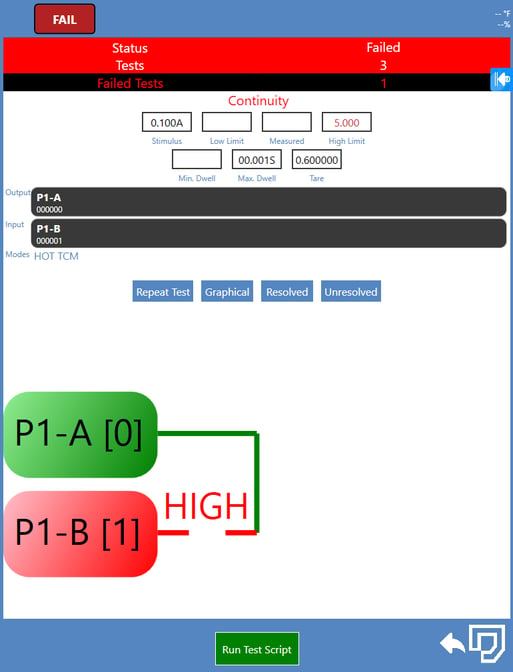
5.4.2.1.2 Test Information
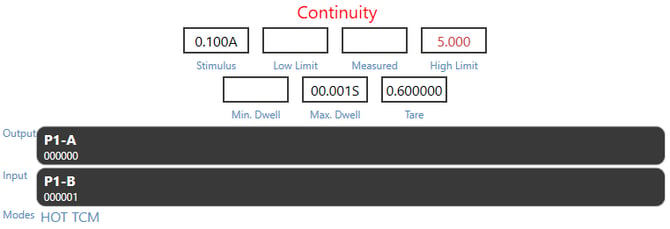
The top portion of the Test Details window contains the general test information for the selected test segment.
- Stimulus - Stimulus value used for the test as defined in the parameter statement.
- Low/High Limit - Test limits used for the test as defined in the parameter statement.
- Min/Max Dwell - Dwell time used for the test as defined in the parameter statement.
- Tare - The currently applied tare value as set in Settings > System Configuration.
- Measured - The currently measured value for the selected test.
- Output - The output address or product nomenclature.
- Input - The input address or product nomenclature.
- Modes - Current modes applied for the selected test.
5.4.2.1.3 Repeat Test
By selecting Repeat Test, users can rerun the selected failure without having to rerun the entire test. NETS will use the same parameters defined by the user for the test script, but will only run the highlighted test. The results of the repeated test can be reviewed in the Results Pane under the Repeated Tests tab. If a failed test is highlighted, a small graphical display is provided at the bottom portion of the window.
5.4.2.1.4 Graphical
If a larger view of the graphical display is desired, select the Graphical button, and a full-screen graphical display of the error will be shown. Users may view a Graphical Error Display and a Schematic Representation. Both viewing options can be printed.
5.4.2.1.5 Test Details Resolved or Unresolved
If a portion of the test fails, users can select the Resolved or Unresolved button and enter comments. If Resolved or Unresolved is selected, users will be prompted to select a Fault Code and optional comments, which are user-defined and created in Settings > Fault Codes. The Resolution status under Modes in the Test Details will update to Resolved or Unresolved with the Fault Code information selected.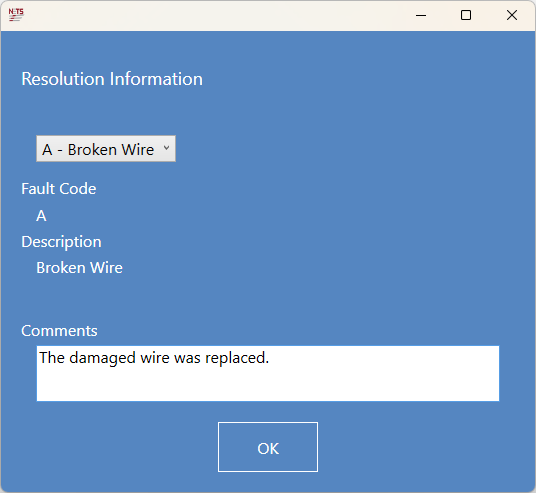
5.4.2.1.6 Test Worklist Resolved or Unresolved
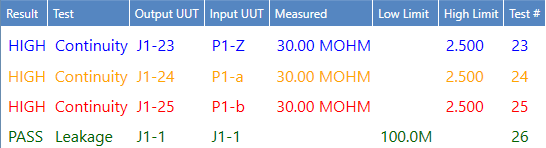
- Resolved tests are shown in BLUE.
- Unresolved tests that are assigned a fault code, but are not yet fixed, are shown in ORANGE.
- Unresolved tests that remain unresolved are shown in RED.
- Passing tests are shown in GREEN.
Source: NETS User Manual, Revision D, document 132-06035-0006, section 5.4.2.1.